
Google Earth Engine Access and Usage Guide
1. Introduction to Google Earth Engine (GEE)
Google Earth Engine (GEE) is a cloud-based platform that enables users to analyse and visualise geospatial data at planetary scale. It provides access to a multi-petabyte catalog of satellite imagery and geospatial datasets, with tools to analyse and visualise that data.
GEE is particularly useful for:
- Environmental monitoring
- Land use and land cover mapping
- Climate research
- Disaster response
- Agricultural analysis
- Urban planning

2. Getting Started with Google Earth Engine
- Sign up for GEE access:
- Visit Google Earth Engine signup page
- Use your Google account to register

- Select whether you’ll use GEE for research, education, or non-profit work


- Sign up for GEE access:


- Wait for approval (usually takes 1-2 business days)
- Create a Google Cloud Project:
- Go to Google Cloud Console


- Create a new project or use an existing one

- Create a new project and type your new project name:


- Enable the Earth Engine API for your project
- If your organisation restricts project creation, contact your IT administrators
Accessing the Earth Engine Platform
Once approved, you can access GEE through:
- Code Editor: The browser-based JavaScript IDE at code.earthengine.google.com
- Python API: For integrating GEE with Python workflows
- REST API: For custom applications and integration

3. Exploring the Code Editor Interface
The Code Editor is the primary interface for most users. Here’s how to navigate it:
Main Components
- Script Panel (left side): Where you write JavaScript code
- Map Panel (center): Displays your visualisation results
- Console Panel (right side): Shows outputs, errors, and inspector results
- Asset Manager (top-left): Lists your imported and saved assets
- Documentation Panel (top-right): Shows function documentation
4. Working with Data in Earth Engine
Finding and Importing Datasets
- Explore the Data Catalog:
- Click on the “Datasets” tab in the Code Editor
- Browse categories or search for specific datasets
- Example: Search for “Landsat” to find Landsat collections
- Import External Data:
- Click on “Assets” in the left panel
- Use “New” → “Image Upload” or “Table Upload”
- You can also import data programmatically using the API
5. Advanced Authentication and Project Management
Specifying a Cloud Project
For JavaScript users:
ee.initialize({
  projectId: 'my-project-id'
});
For Python users:
import ee
ee.Authenticate()
ee.Initialize(project='my-project-id')
Setting Up Python API Access
- Install the Earth Engine Python API:
pip install earthengine-api - Authenticate:
import ee
ee.Authenticate()
ee.Initialize()
By following this guide, you should be able to navigate Google Earth Engine’s powerful capabilities and start developing your own geospatial analysis projects.
Google Earth Engine (GEE) – From Exploration to Export
Step 1: Explore & Visualize Data in GEE Code Editor
Access the Code Editor
- Link to Google Earth Engine Code Editor:Earth Engine Code Editor
- Log in or register for an Earth Engine account.
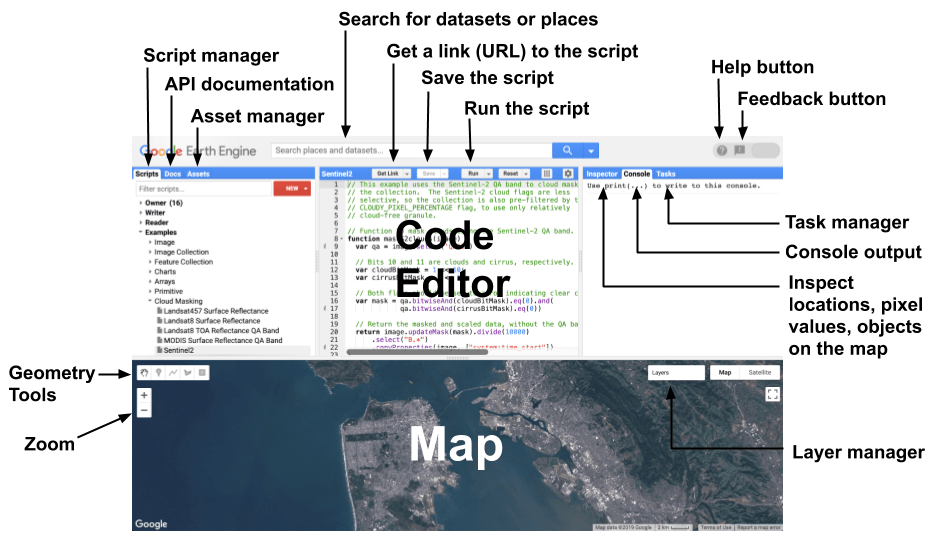
Understanding the Code Editor Features
The GEE Code Editor is a web-based IDE for the Earth Engine JavaScript API, designed for geospatial analysis. It includes:
- JavaScript code editor
- Map display for visualization
- API reference documentation (Docs tab)
- Script Manager for saving projects (Scripts tab)
- Console tab for script output
- Tasks tab for handling long-running queries
- Inspector tab for inspecting map elements
- Geometry drawing tools for custom shapes
Load Example Data: Thailand Boundary
We will load and visualise temperature data from a .tiff file within a Thailand boundary.
// Load temperature image from project assets
var temperature = ee.Image("projects/ee-udomporn/assets/AvgSurfT");

// Calculate statistics
var stats = temperature.reduceRegion({
  reducer: ee.Reducer.minMax(),
  geometry: temperature.geometry(),
  scale: 1000,
  bestEffort: true
});

// Print statistics
print("Min/Max:", stats);
print("Bands:", temperature.bandNames());
print("Resolution:", temperature.projection().nominalScale());
print("Projection:", temperature.projection());
print("Image Geometry:", temperature.geometry());

// Load Thailand boundary (Example: FAO GAUL dataset)
var thailand = ee.FeatureCollection('FAO/GAUL/2015/level0')
                .filter(ee.Filter.eq('ADM0_NAME', 'Thailand'));

// Select the first month of temperature data
var month1 = temperature.select('b1');

// Visualization settings
var visParams = {
  min: 290,
  max: 315,
  palette: ['blue', 'cyan', 'yellow', 'orange', 'red']
};

// Clip data to Thailand boundary
var clipped = month1.clip(thailand);

// Display results on map
Map.centerObject(thailand, 6);
Map.addLayer(clipped, visParams, 'Temperature');
Map.addLayer(thailand.style({color: 'black', width: 1}), {}, 'Boundary');
Step 2: Export Data to Google Drive
To save the clipped temperature data, we use Export.image.toDrive():
Export.image.toDrive({
  image: clipped,
  description: 'Thailand_SurfaceTemp',
  folder: 'GEE',  // Creates a folder named "GEE" in Google Drive
  fileNamePrefix: 'AvgSurfT_Thailand',
  region: thailand.geometry(),
  scale: 1000,  // Resolution in meters
  crs: 'EPSG:4326',
  maxPixels: 1e13
});
Running the Export Process
- Click the “Tasks” tab.
- Click “Run” next to your export task.
- Wait for the process to finish—your image will be available in Google Drive.
Example result

Step 3: Summary of Workflow
| Step | Action | Tool Used |
|---|---|---|
| 1 | Explore & Clip Data | GEE Code Editor (JavaScript) |
| 2 | Export Image to Drive | Export.image.toDrive() |
| 3 | Download Data Locally | Google Colab + Python |
Additional Notes
Exporting multiple months or bands:
Loop over bands and export each separately.
var month1 = temperature.select('b1').clip(thailand);
var month2 = temperature.select('b2').clip(thailand);
- Link to GEE code editor:GEE code editor
Google Colab – Using GEE Asset & Project
Step 1: Install Required Packages
To work with Google Earth Engine in Colab:Google Colab
# Install required packages
!pip install geemap rasterio localtileserver

Step 2: Import Libraries
Import essential Python libraries:
import ee
import geemap
import os
from google.colab import drive
import matplotlib.pyplot as plt
import rasterio
from rasterio.plot import show
import numpy as np
Step 3: Connect Google Drive to Your Colab Session:
Google Colab does not have direct access to files, so we need to mount Google Drive:
# Mount Google Drive
drive.mount('/content/drive')
Grant Permissions
After running the above command, a link will appear—click it.

Sign in with your Google account and authorize access.

Copy the authentication code and paste it into Colab when prompted.
Access Files in Google Drive
Once mounted, your Google Drive is accessible at /content/drive/MyDrive/. You can navigate folders like this:
!ls /content/drive/MyDrive/
Step 4: Authenticate Earth Engine
Earth Engine requires authentication and initialisation before using its functions.
# Initialize Earth Engine
ee.Authenticate()
Follow the Authentication Process
After running the command, a link will appear—click it.

Sign in with your Google Earth Engine account.

Copy the generated authentication key and paste it into Colab.
Step 5: Initialise Earth Engine with Your Project
# Initialize Earth Engine
ee.Initialize(project='ee-udomporn') # Your GEE Project Name
This allows access to datasets stored within your GEE project.
Step 6: Load Data from GEE Asset
Retrieve data from the Earth Engine project assets.
# Load Data from GEE Asset
asset_id = "projects/ee-udomporn/assets/AvgSurfT"
temperature_image = ee.Image(asset_id)
Step 7: Check Min/Max for Each Band
To analyze the range of values for each band (month), loop through the bands and check their min/max values.
for i in range(1, 6):
    band_name = f'b{i}'
    stats = temperature_image.select(band_name).reduceRegion(
        reducer=ee.Reducer.minMax(),
        geometry=temperature_image.geometry(),
        scale=1000,  # Resolution in meters
        maxPixels=1e9
    ).getInfo()
    print(f'{band_name}: {stats}')
Step 8: Load Thailand Boundary
# Load Thailand Boundary from FAO GAUL
thailand = ee.FeatureCollection('FAO/GAUL/2015/level0')\
.filter(ee.Filter.eq('ADM0_NAME', 'Thailand'))
Step 9: Select & Clip Data
Extract Band 1 (Month 1) and clip it to Thailand’s boundary.
# Select Band 1 (Month 1)
month1 = temperature_image.select('b1')

# Clip Image by Thailand Boundary
clipped_image = month1.clip(thailand)
Step 10: Visualize Data in geemap
Create an interactive map centered over Thailand.
Map = geemap.Map(center=[13, 101], zoom=6)

# Define visualization parameters
vis_params = {
    'min': 290,
    'max': 315,
    'palette': ['blue', 'cyan', 'yellow', 'orange', 'red']
}

# Create a style dictionary for a thin boundary line
thailand_outline = thailand.style(
    color='black',   # Line color
    width=0.5,       # Line width
    fillColor='00000000'  # Transparent fill color
)

# Add layers to the map
Map.addLayer(month1, vis_params, 'Clipped Surface Temp')
Map.addLayer(thailand_outline, {}, 'Thailand Boundary (Thin)')
Map.add_colorbar(vis_params, label='Temperature (K)')
Map.addLayerControl()

Map

Step 11: Export Data to Google Drive
Save the clipped data to your Google Drive.
# Export to Google Drive
task = ee.batch.Export.image.toDrive(
image=clipped_image,
description='Thailand_SurfaceTemp',
folder='GEE_Export', # Folder in your Google Drive
fileNamePrefix='AvgSurfT_Thailand',
region=thailand.geometry(),
scale=1000,
crs='EPSG:4326',
maxPixels=1e13
)
task.start()

print('Export Task Started. Check Earth Engine Tasks tab.')
AFTER export completed in GEE Task tab
# Download from Drive to Colab
!cp /content/drive/MyDrive/GEE_Export/AvgSurfT_Thailand.tif /content/

# Download to Local Computer
files.download('/content/AvgSurfT_Thailand.tif')
Final Workflow Summary
| Step | Process | Tool Used |
| 1 | Mount Google Drive | drive.mount(‘/content/drive’) |
| 2 | Authenticate Earth Engine | ee.Authenticate() |
| 3 | Initialize Earth Engine with Project | ee.Initialize(project=’your_project_name’) |
| 4 | Load GEE Asset & Clip Data | ee.Image(asset_id), clip(thailand) |
| 5 | Check Min/Max for Each Band | reduceRegion() |
| 6 | Export Data to Google Drive | ee.batch.Export.image.toDrive() |
| 7 | Visualize Data in geemap | geemap.Map() |
| 8 | Download to Local Computer | files.download() |
Important Notes
- Run the Export Task in Colab → Then go to GEE Tasks tab → Run manually.
- Wait until the task finishes before downloading your file.
- Interactive Visualisation in geemap: Use
Mapto display data dynamically. - Example Colab Notebook Link to Google Colab Notebook Example:
- Link to Google Colab:
Google Colab Example
- Link to Google Colab:
Working with Google Earth Engine for Geospatial Analysis
This tutorial shows how to analyse and visualise geospatial temperature data using Google Earth Engine (GEE) and Python. We’ll cover authentication, loading Earth Engine assets, processing data, and creating interactive maps.
Step-By-Step Earth Engine Workflow
1. Authenticate Earth Engine
First, you need to authenticate with your Google account:
import ee

# Authenticate
ee.Authenticate()
This will open a browser window where you’ll need to sign in with your Google account and authorize the Earth Engine API.
2. Initialize Earth Engine with Your Project
# Initialize Earth Engine with your specific project
ee.Initialize(project='ee-udomporn')  # Replace with your GEE Project Name
3. Load Data from GEE Asset
# Load temperature data from your Earth Engine asset
asset_id = "projects/ee-udomporn/assets/AvgSurfT"
temperature_image = ee.Image(asset_id)

# Print basic information about the image
print(temperature_image.bandNames().getInfo())
4. Check Min/Max for Each Band
# Function to get min/max values for a band
def get_band_stats(image, band_name):
    stats = image.select(band_name).reduceRegion(
        reducer=ee.Reducer.minMax(),
        geometry=image.geometry(),
        scale=1000,
        maxPixels=1e9
    )
    return stats.getInfo()

# Get band names
band_names = temperature_image.bandNames().getInfo()

# Print stats for each band
for band in band_names:
    stats = get_band_stats(temperature_image, band)
    print(f"Band {band}: Min = {stats[band+'_min']}, Max = {stats[band+'_max']}")
5. Load Thailand Boundary from FAO GAUL
# Load Thailand boundary from FAO's Global Administrative Unit Layers
thailand = ee.FeatureCollection('FAO/GAUL/2015/level0')\
           .filter(ee.Filter.eq('ADM0_NAME', 'Thailand'))

# Print information about the boundary
print(f"Thailand boundary: {thailand.first().getInfo()['properties']['ADM0_NAME']}")
6. Visualise Data in GeeMap
Create an interactive map centered over Thailand:
import geemap

# Create a map centered on Thailand
Map = geemap.Map(center=[13, 101], zoom=6)

# Define visualization parameters
vis_params = {
    'min': 290,
    'max': 315,
    'palette': ['blue', 'cyan', 'yellow', 'orange', 'red']
}

# Create a style dictionary for a thin boundary line
thailand_outline = thailand.style(
    color='black',   # Line color
    width=0.5,       # Line width
    fillColor='00000000'  # Transparent fill color
)

# Add layers to the map
Map.addLayer(clipped_image, vis_params, 'Thailand Surface Temperature')
Map.addLayer(thailand_outline, {}, 'Thailand Boundary (Thin)')
Map.add_colorbar(vis_params, label='Temperature (K)')
Map.addLayerControl()

# Display the map
Map
7. Selecting & Clipping Data to Bangkok Boundary
When you need to focus your analysis on a specific area like Bangkok instead of the entire country of Thailand, you can use Earth Engine’s filtering and clipping capabilities. Here’s how to modify your code to select and clip temperature data specifically for Bangkok:
# Load Thailand admin level 1 (province) boundaries
provinces = ee.FeatureCollection('FAO/GAUL/2015/level1')\
            .filter(ee.Filter.eq('ADM0_NAME', 'Thailand'))

# Filter to get only Bangkok
bangkok = provinces.filter(ee.Filter.eq('ADM1_NAME', 'Bangkok'))

# Print the name to verify
print(f"Selected area: {bangkok.first().getInfo()['properties']['ADM1_NAME']}")

# Select Band 1 (Month 1)
month1 = temperature_image.select('b1')

# Clip image to Bangkok boundary
bangkok_clipped = month1.clip(bangkok)
8. Visualising Bangkok Temperature Data
To create a focused map of Bangkok:
# Create a map centered on Bangkok
Map = geemap.Map(center=[13.7563, 100.5018], zoom=10)  # Centered on Bangkok

# Define visualization parameters
vis_params = {
    'min': 290,
    'max': 315,
    'palette': ['blue', 'cyan', 'yellow', 'orange', 'red']
}

# Create a style dictionary for a thin boundary line
bangkok_outline = bangkok.style(
    color='black',   # Line color
    width=1,         # Line width
    fillColor='00000000'  # Transparent fill color
)

# Add layers to the map
Map.addLayer(bangkok_clipped, vis_params, 'Bangkok Surface Temperature')
Map.addLayer(bangkok_outline, {}, 'Bangkok Boundary')
Map.add_colorbar(vis_params, label='Temperature (K)')
Map.addLayerControl()

# Display the map
Map

9. Exporting Earth Engine Data to Your Local Drive
When working with Google Earth Engine, you can export processed data directly to your local machine instead of Google Drive. This approach is useful when you want immediate access to your files without downloading them from cloud storage. Here’s how to do it:
Using Earth Engine Export and Google Drive as Intermediate Step
import ee
import os
import time
from google.colab import drive  # If using Colab

# Initialize Earth Engine
ee.Authenticate()
ee.Initialize(project='ee-udomporn')

# Mount Google Drive if using Colab
drive.mount('/content/drive')

# Select data and clip to Bangkok
provinces = ee.FeatureCollection('FAO/GAUL/2015/level1')\
            .filter(ee.Filter.eq('ADM0_NAME', 'Thailand'))
bangkok = provinces.filter(ee.Filter.eq('ADM1_NAME', 'Bangkok'))
month1 = temperature_image.select('b1')
bangkok_clipped = month1.clip(bangkok)

# Set up export parameters
export_params = {
    'image': bangkok_clipped,
    'description': 'Bangkok_Temperature',
    'folder': 'GEE_Exports',
    'fileNamePrefix': 'bangkok_temp',
    'scale': 100,
    'region': bangkok.geometry(),
    'fileFormat': 'GeoTIFF'
}

# Start the export task
task = ee.batch.Export.image.toDrive(**export_params)
task.start()

# Wait for the export to complete
while task.status()['state'] in ['READY', 'RUNNING']:
    print(f"Task status: {task.status()['state']}")
    time.sleep(30)  # Check every 30 seconds

print(f"Task completed with state: {task.status()['state']}")

# Once complete, copy from Google Drive to local directory
source_path = '/content/drive/MyDrive/GEE_Exports/bangkok_temp.tif'
local_path = './bangkok_temp.tif'

# Copy the file
import shutil
shutil.copyfile(source_path, local_path)
print(f"File saved locally at: {local_path}")
10. Processing the Downloaded File Locally
import ee
import geemap
import rasterio

# Load raster locally just to view/inspect metadata (optional)
with rasterio.open('bangkok_temp.tif') as src:
bangkok_temp = src.read(1)
transform = src.transform
crs = src.crs

# Use geemap to upload and view local GeoTIFF
Map = geemap.Map(center=[13.7563, 100.5018], zoom=10)
# Add a local GeoTIFF file to the map
Map.add_raster('bangkok_temp.tif', layer_name='Bangkok Surface Temp', palette=['blue', 'cyan', 'yellow', 'orange', 'red'], vmin=290, vmax=315)
# Display the map
Map
By combining Earth Engine’s cloud processing capabilities with local file access, you can efficiently analyse geospatial data while maintaining the flexibility of your local development environment.
- Link to Download Jupyter Notebook:Jupyter Notebook